
You bought an iPhone because it's a great phone, and you use Windows because it's a great PC. Then you try to move one video from the phone to the computer and discover that these two worlds barely speak to each other. AirDrop doesn't exist on Windows. iTunes wants a cable and a mood. Emailing yourself a file feels like 2009 — and it quietly ruins your video quality on the way.
Here's the good news: transferring files from iPhone to Windows without a cable is genuinely easy in 2026 — you just need to pick the right method for the job. In this guide we'll walk through six wireless ways to do it, from instant local Wi-Fi transfers to cloud sync, with honest notes about where each one shines and where it falls apart. No iTunes anywhere in sight.
Quick answer: the fastest way to send files from an iPhone to a Windows PC wirelessly is a direct local Wi-Fi transfer — install a cross-platform transfer app like BIShare on both devices, and the file moves straight from phone to PC over your router at local network speed, end-to-end encrypted, with nothing uploaded to the internet. For a one-off transfer with nothing installed on the PC, send yourself a browser transfer link instead. Everything else — iCloud, OneDrive, email — works, but adds upload time, size limits, or quality loss.
Let's take each option in turn.
Why there's no AirDrop between iPhone and Windows
Before the how, thirty seconds on the why. Apple's AirDrop is built on a private mix of Bluetooth discovery and point-to-point Wi-Fi that Apple has never opened to other platforms — so AirDrop to Windows simply isn't possible, no matter what a search ad promises. Microsoft's equivalent (Nearby Share on Windows) only talks to other Windows PCs and Android phones. Your iPhone and your PC each have a great short-range sharing system; they just weren't introduced to each other.
That's why every real solution takes one of two routes:
- The local route — an app on both devices finds the other over your home or office Wi-Fi and sends the file directly, phone to PC. This is the AirDrop experience, rebuilt on open, cross-platform tech.
- The internet route — the file goes up to a server (iCloud, OneDrive, a transfer link) and comes back down on the PC. It works from anywhere, but you pay for it in upload time and, sometimes, size caps.
Keep that split in mind — it's the single most useful way to choose a method.
Method 1: Direct local Wi-Fi transfer with BIShare (fastest)
If you transfer files between your iPhone and PC more than once a month, this is the setup worth two minutes of your time. A local transfer app recreates what AirDrop does — automatic discovery, tap to send, no size limits — but across platforms.
Here's how it works with BIShare, which is free and has no account to create:
- Install the app on both devices. Grab it for iPhone from the App Store and for Windows from the download page. (There are builds for Mac, Android, and Linux too, so the same setup covers every device you'll ever own.)
- Connect both devices to the same Wi-Fi network. Your phone and PC just need to be on the same router — the transfer never leaves your network.
- Open BIShare on both. Within a second or two, each device sees the other by name. No pairing codes, no login.
- Pick your files on the iPhone and tap your PC's name. Photos, videos, PDFs, ZIPs — anything. The PC shows an incoming-file prompt (so nobody can push files at you silently), you accept, and the transfer streams directly.
- Find the files in your PC's BIShare inbox, ready to open or drag anywhere.
That's the whole flow. Why do we call it the method to beat? Four reasons:
- It's the fastest option physically possible. The file takes exactly one hop: phone → router → PC. No upload leg, no server in another country, no throttling. To put a real number on it: on our own test bench — a mid-range phone and a laptop sharing an ordinary Wi-Fi 5 router — BIShare sustains roughly 40–50 MB/s, which moves a 2 GB video in under a minute. Every internet-based method below has to push the same bytes twice (up, then down), each leg capped by your broadband, not your router.
- Nothing touches the internet. The transfer is device-to-device on your own network and end-to-end encrypted with keys only your two devices hold. For private material — contracts, ID scans, family photos — this matters more than speed.
- No size limits and no quality loss. A 4K video arrives as the exact original file, bit for bit. There's no "optimize for sharing" toggle silently recompressing your media, which is the classic email/messaging trap.
- It keeps working when the internet doesn't. Hotel Wi-Fi with no bandwidth, a studio with no connection at all, an airplane hotspot — as long as both devices share a network, the transfer works.
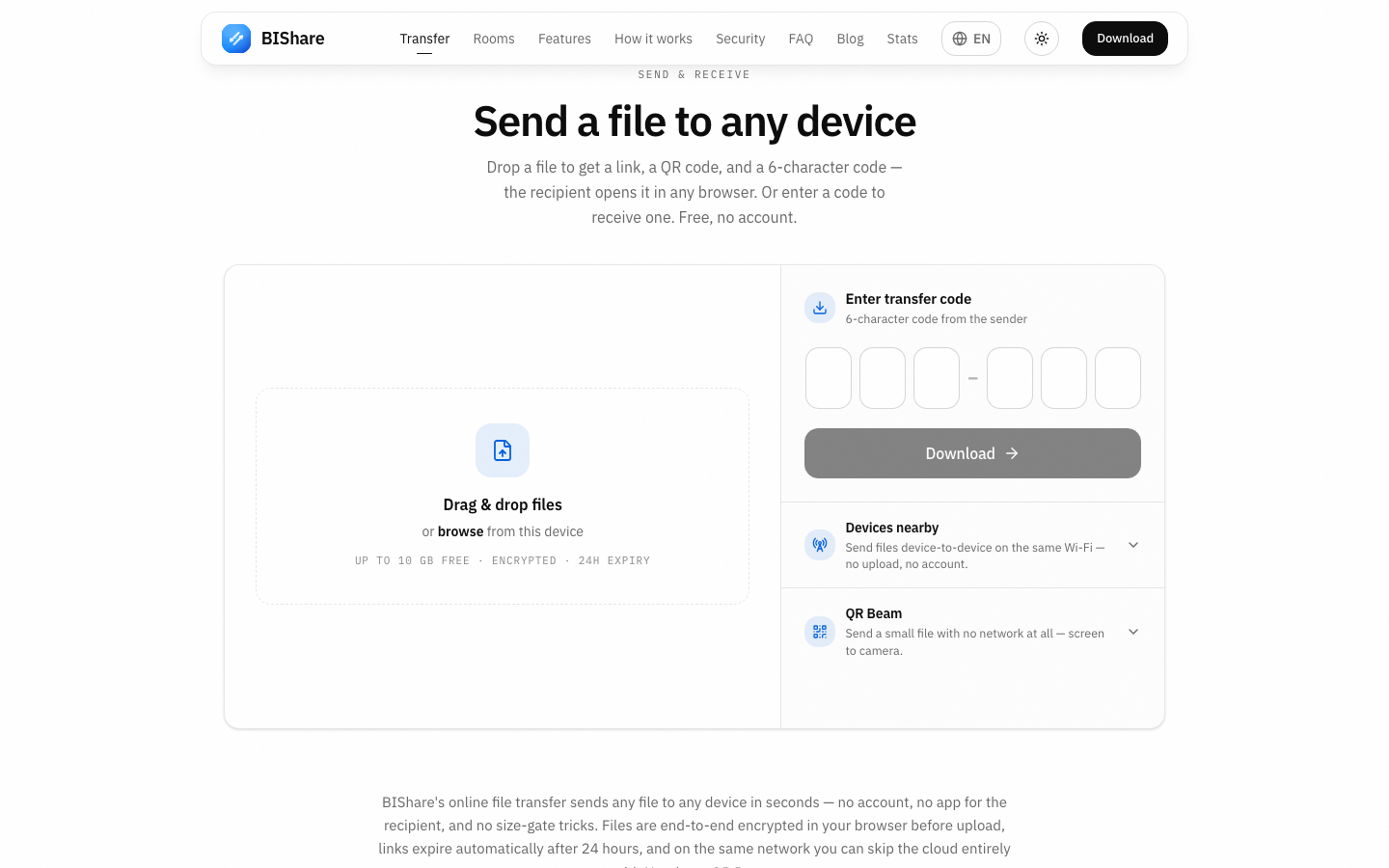
The screenshot below shows the same tool's web version, which brings us to the second method — for the times you can't install anything.
Method 2: A browser transfer link (nothing to install on the PC)
Sometimes the Windows PC isn't yours — a work machine with locked-down installs, a friend's laptop, a hotel business center. For those, use a browser-based transfer:
- On your iPhone, open bishare.app/transfer in Safari (or use the BIShare app's link-share).
- Drop in your file — it's encrypted in the browser before upload, so the relay only ever stores scrambled bytes it cannot read.
- You get three ways to hand it to the PC: a link to open, a QR code to scan, or a 6-character code to type into the same page.
- On the Windows PC, open the link in any browser and download. Done — no app, no account, and the link deletes itself after 24 hours.
This is the internet route, so the file uploads first — on typical home broadband that's the bottleneck. But it wins on universality: it works on any PC with a browser, even across different networks (send from the office, download at home). Free transfers go up to 10 GB per file, which comfortably covers long videos, RAW photo batches, and chunky presentations that email would bounce. For bigger jobs, see our guide to sending large files.
One honest caveat versus Method 1: because the key travels inside the link itself, anyone you forward that link to can download the file until it expires. Treat the link like the file.
Method 3: iCloud Photos and iCloud Drive on Windows
Apple does ship an official bridge to Windows: iCloud for Windows, available from the Microsoft Store. Once installed and signed in with your Apple ID, it can sync iCloud Photos into your PC's Photos/Pictures library and expose iCloud Drive as a folder in File Explorer (Apple's setup guide covers it step by step).
It's genuinely useful for one pattern: continuous photo sync. Every picture you take appears on the PC eventually, with no per-transfer effort. But know its character before relying on it:
- "Eventually" is doing some work in that sentence. Photos upload to Apple's servers when the phone is on Wi-Fi and charging conditions allow, then download to the PC. It's minutes on a good day; it can be much longer.
- Your free allowance is 5 GB. A modern iPhone shoots that in an afternoon. Realistically, photo sync means paying for iCloud+ storage.
- It's sync, not transfer. Deleting a photo from iCloud to free space removes it everywhere. People have lost pictures misunderstanding this — if you want a one-way copy ("get this file to the PC and leave my phone alone"), sync is the wrong shape.
- Non-photo files go through the iCloud Drive folder: save from the iPhone's Files app, wait for sync, open on the PC. It works, with the same upload-then-download rhythm.
Use iCloud as your always-on photo backstop, and one of the direct methods for everything deliberate.
Method 4: Microsoft Phone Link — know its limits
Windows 11 ships with Phone Link, and Microsoft does support iPhone (pairing guide here). It's worth setting up — but for calls, messages, and notifications on your PC.
As a file transfer channel from iPhone, it will disappoint you: the deep integration (browsing your photo gallery from the PC, dragging files across) is an Android-only feature of the Link to Windows ecosystem. The iPhone side is constrained by what iOS exposes to third parties, which is far less. People regularly install Phone Link expecting AirDrop-for-Windows and come away thinking iPhone-to-PC transfer is hopeless — it isn't; this just isn't the tool. Keep Phone Link for messages, and pair it with Method 1 or 2 for files.
Method 5: Cloud drives — OneDrive, Google Drive, Dropbox
The general-purpose clouds all have solid iPhone apps, and OneDrive in particular is practically native on Windows. The flow is the same for each:
- Install the drive's app on the iPhone and sign in.
- Upload the files (OneDrive and Google Photos can also auto-upload your camera roll).
- On the PC, the files appear in the synced folder or on the web.
This is a fine method, especially if your life already lives in one of these clouds. The trade-offs are familiar by now: you're on the internet route (upload + download), free tiers are tight (OneDrive 5 GB, Google 15 GB shared with Gmail, Dropbox 2 GB), and you're parking personal files on a server under a standard cloud privacy model rather than end-to-end encryption. For recurring team workflows, though — a shared client folder that both your phone and PC can drop into — a cloud drive is the right shape, and a dedicated comparison of transfer options for big folders can help you pick.
Method 6: Email and messaging apps (the last resort)
Mailing yourself a file works in a pinch. That is the nicest thing we can say about it, because the limits are structural:
- Attachment caps: ~20–25 MB on most providers. One minute of iPhone 4K video blows past it.
- Quality destruction: WhatsApp, Messenger, and friends aggressively recompress photos and videos. The "same" photo arrives visibly softer, at a fraction of the file size. For anything you care about — clients, prints, memories — this is disqualifying.
- Cleanup debt: your inbox becomes a junk drawer of "fwd: fwd: video(2).mov".
If you remember one rule: never move media you care about through a messaging app. Use any direct method above and the original file arrives untouched.
The six methods, side by side
| Method | Speed | Size limit | Needs internet | Install on PC | Quality loss |
|---|---|---|---|---|---|
| BIShare local Wi-Fi | Fastest — one hop over your router | None | No | Yes (free app) | None |
| Browser transfer link | Upload + download | 10 GB free | Yes | No — any browser | None |
| iCloud for Windows | Background sync (variable) | 5 GB free tier | Yes | Yes | None (with originals on) |
| Phone Link | — | Not a real file channel for iPhone | Yes | Built into Win 11 | — |
| Cloud drives | Upload + download | 2–15 GB free tiers | Yes | Optional | None |
| Email / messaging | Slow | ~25 MB email; app-dependent | Yes | No | Yes — recompression |
Which method should you actually use?
Match the tool to the situation rather than hunting for one winner:
- You do this regularly (photos off the phone, videos to edit, documents both ways): set up the local Wi-Fi app once — it's the AirDrop-class experience, and the same app covers your other devices too.
- One-off transfer, or a PC you can't install on: browser transfer link. Thirty seconds, nothing installed, link self-destructs.
- You want every photo on the PC without thinking about it: iCloud Photos (budget for the storage plan), or OneDrive camera upload if you'd rather live in Microsoft's world.
- The recipient is far away, not on your network: transfer link or cloud drive — the local route needs a shared network. (For the curious: BIShare's link mode exists precisely for this, so one app covers both.)
- It's a 30 KB text file and you truly don't care: fine, email it. We won't tell.
Moving photos specifically? Two Windows 11 gotchas
The single most common version of this task is moving photos from iPhone to Windows 11, and two details trip everyone:
HEIC files. iPhones shoot in HEIC/HEIF by default — half the size of JPEG at the same quality, but some older Windows apps still shrug at it. Two clean fixes: transfer as-is and let Windows 11's Photos app handle it (it opens HEIC natively; a free codec from the Microsoft Store fills any gaps), or set the iPhone to be compatibility-minded — Settings → Camera → Formats → Most Compatible — so new shots are JPEG/H.264. If a specific app rejects HEIC, sharing the photo through most transfer flows converts a copy without touching your original.
"Optimize iPhone Storage." If iCloud Photos runs with storage optimization on, the full-resolution original may live only in iCloud, with a lightweight version on the phone. Direct transfers of such photos first pull the original from iCloud — so a huge batch can be slower than expected on the first pass. That's not the transfer tool being slow; it's the phone quietly downloading originals. Plug in, get on Wi-Fi, and let it fetch.
Troubleshooting: iPhone and PC can't see each other
Local discovery failing is almost always the network being cleverer than you'd like. Run down this list — it resolves the overwhelming majority of cases:
- Same network, same band. The phone on
HomeWiFi-5Gand the PC onHomeWiFi-Guestare on different networks as far as discovery is concerned. Put both on the exact same SSID. Guest networks in particular usually block device-to-device traffic on purpose. - AP / client isolation. Public and office Wi-Fi often enables isolation, which stops any two clients from talking — by design. You can't fix that from your phone. Use the browser-link method instead (it only needs internet), or hotspot: turn on the iPhone's Personal Hotspot, join the PC to it, and do the local transfer over that private two-device network — no internet required.
- Windows firewall. The first time a transfer app runs, Windows asks to allow it on private networks — if that prompt got dismissed, discovery is blocked. Check Windows Security → Firewall & network protection → Allow an app through firewall and make sure your transfer app is allowed on Private networks. Also confirm your Wi-Fi is set as a Private profile, not Public.
- The unglamorous classics. Toggle Wi-Fi off/on on the phone, restart the app on both ends, and make sure the PC isn't on Ethernet-only with Wi-Fi disabled (wired PC + wireless phone on the same router is fine — they're still one network).
- VPNs. A VPN on either device can route traffic away from the local network. Pause it for the transfer.
If discovery still fails after all five, the network truly won't allow peer-to-peer — fall back to the browser transfer, which works everywhere the internet does.
A word on privacy while you're moving files
A file in transit is a file exposed, so it's worth ten seconds of thought about where it travels. And no, encryption doesn't make transfers slow — modern phone and PC chips encrypt faster than any Wi-Fi can carry. We know because we once got it wrong: an early build of our app shipped with hardware AES accidentally disabled, and transfers crawled near 2 MB/s. Same code with the chip's crypto engaged: the full 40–50 MB/s. If a "secure" transfer tool feels slow, the tool is broken, not the cryptography. The local method never leaves your router, and with end-to-end encryption even someone on your network sees only ciphertext. Internet methods put your file on someone's server: with a zero-knowledge transfer link the server can't read it; with ordinary cloud sync, you're trusting the provider's policies. None of this means cloud methods are unsafe — it means match the channel to the sensitivity of the file. Tax documents deserve better than a messaging app.
Bonus: sending files the other way — Windows PC to iPhone
Everything above runs in reverse, and it's worth spelling out because the return trip has its own quirks:
- Local Wi-Fi transfer is symmetric. In BIShare on the PC, drop files onto your iPhone's name and accept on the phone — same speed, same encryption, same zero-internet path. Received photos and videos can go straight into the iPhone's photo library; documents land in the app's inbox, from which the iOS share sheet sends them to Files, or any app you like.
- Watch the formats. iPhones happily receive almost anything, but what opens where differs: a
.mkvvideo won't play in the stock Photos app (VLC handles it), Windows-only formats like.exeare just storage on iOS, and Office files open in the mobile Office apps or in Pages/Numbers via conversion. Transfer never changes your file — the destination app decides what it can do with it. - The cloud detour still applies. iCloud Drive's folder on the PC is a perfectly good way to stage files the phone should have "eventually"; a browser link works when the PC is somewhere else entirely. The decision logic from the table above is direction-agnostic: shared network → go local; different networks → go link or cloud.
- Battery and lock-screen behavior. One iPhone-specific wrinkle we ran into repeatedly while building our own receive pipeline: iOS suspends most apps aggressively when the screen locks, which can pause an in-flight receive. For big incoming batches, keep the phone unlocked and plugged in until the transfer finishes. A 20-gigabyte video project is exactly when you don't want iOS deciding your transfer app has had enough CPU.
If you move files both directions daily — shooting on the phone, editing on the PC, pushing exports back — the two-app setup from Method 1 quietly becomes the workflow: both devices permanently visible to each other, transfers in either direction two taps away, no cables on the desk ever again.
The bottom line
The iPhone-to-Windows wall is real, but it's thinner than it looks. For the daily grind, a direct local Wi-Fi transfer gives you the AirDrop experience Apple never shipped for Windows — instant discovery, original quality, no size caps, nothing on the internet. For everything occasional, a browser transfer link covers any PC on earth with zero setup. Keep iCloud or OneDrive humming in the background for photos if you like, and retire the email-attachment habit for good.
Try the two-minute setup: install BIShare on your iPhone and PC — or skip installs entirely and send a file from your browser right now. Either way, the next file you move will take less time than reading this sentence took.