
For about a decade, the answer to "how do I get videos from my Android phone onto my Mac?" was a scrappy little utility called Android File Transfer. It was never good — it crashed, it froze on big files, it lost its mind if you looked at it sideways — but it was official, it was free, and everyone used it. Then Google quietly discontinued it. Visit its old home today and there's no download; on recent versions of macOS, the app people still have lying around simply refuses to run.
Which leaves a very modern kind of orphan: you, holding a phone full of 4K video, next to a Mac that Google no longer acknowledges exists. And no, Quick Share won't save you — Google ships it for Windows, not macOS.
The good news is that the unofficial answers in 2026 are dramatically better than the official one ever was. Below are five ways to send large videos from Android to a Mac — wireless first, full quality throughout, with straight talk about the one method that silently ruins your footage. This is the Android sibling of our iPhone-to-Windows guide; same philosophy, different minefield.
First, respect the size of the problem
"Large video" stopped being an exaggeration years ago. Modern phones shoot:
- 1080p at 30 fps: roughly 60–130 MB per minute
- 4K at 30 fps: roughly 350–400 MB per minute
- 4K at 60 fps, high bitrate: comfortably over 750 MB per minute
Ten minutes of holiday 4K is a 3–4 GB object. (Worth knowing: if a video's destination is Instagram and group chats rather than a television, shooting 4K30 instead of 4K60 halves your transfer sizes at zero visible cost — the cheapest "optimization" in this article is a camera setting.) That single fact disqualifies half the internet's advice:
- Email caps out around 25 MB — seconds of footage.
- WhatsApp, Telegram, Messenger will accept your video, then quietly recompress it into a soft, blocky imitation. The waveform of your kid's recital survives; the detail doesn't.
- Many "free transfer" sites cap files at 1–2 GB, which a phone exceeds before lunch.
So the bar for this article is strict: every method below must move a multi-gigabyte video at original quality. If a method can't, we say so.
Why Android File Transfer was always broken (a 60-second autopsy)
It's worth one minute of your life to understand why the old way hurt, because the lesson explains what to use instead.
Android File Transfer spoke MTP — Media Transfer Protocol — a standard designed in the mid-2000s for syncing songs onto MP3 players. MTP moves files through a single serialized command channel: one operation at a time, no parallelism, no resume. If a 3 GB copy died at 92% — cable wiggle, phone screen lock, cosmic ray — you started over from zero. There's no partial-file recovery in the protocol. Add macOS's increasingly strict USB device permissions, and you get the experience a generation of users remember: the beachball, the "device not found", the third attempt.
Every method below sidesteps MTP entirely. That's not an accident; it's the fix.
Way 1: Direct Wi-Fi transfer — the one to set up
The cleanest replacement for the dead official app is a cross-platform transfer app that runs natively on both Android and macOS and sends files straight across your Wi-Fi. We build one — BIShare, free, no account — so this is also where we can show real numbers instead of adjectives.
The flow, once, takes two minutes:
- Install BIShare on the phone (Play Store) and the Mac (download page).
- Put both on the same Wi-Fi.
- Open the app on both. The Mac appears on the phone by name — discovery is automatic, no pairing.
- Pick your videos, tap the Mac, accept the incoming prompt on the Mac. Files land in the app's inbox, originals intact.
What makes this the default recommendation for video specifically:
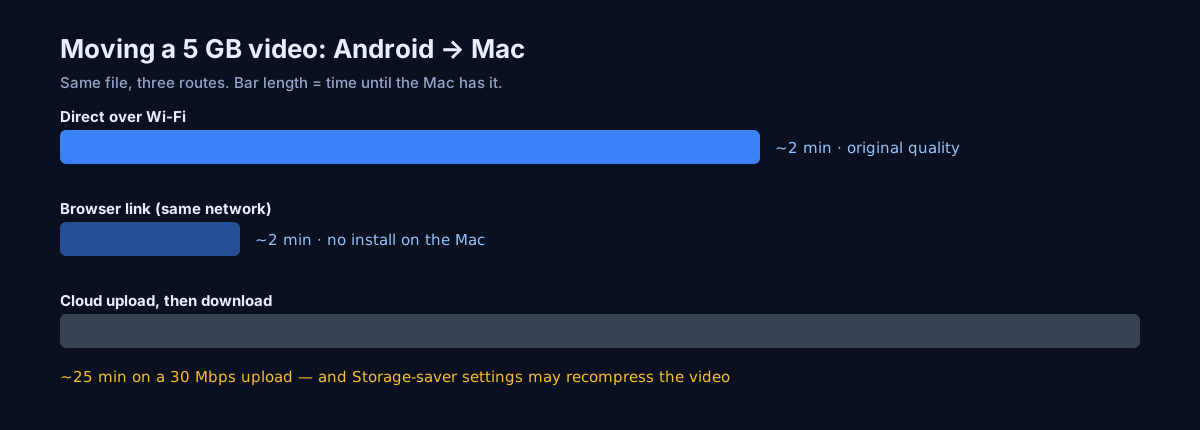
- Speed scales with your router, not your broadband. The video makes one hop, phone → router → Mac. On our own test hardware — a mid-range Samsung and a MacBook on the same access point — that sustains about 40–50 MB/s in practice, so a 3 GB clip lands in roughly a minute. Your fiber plan is irrelevant; you could unplug the modem and it would still work.
- Bit-for-bit originals. No recompression stage exists anywhere in the path. The HEVC file your camera wrote is the HEVC file the Mac receives, hash-identical.
- End-to-end encryption as a default, not a checkbox. Footage of your kids never transits anyone's server — there is no server.
- It's symmetric and it scales down your device zoo. The same app moves the finished edit back to the phone, and the same setup covers a Windows PC or a Linux box when one joins the family.
If you shoot regularly and own a Mac, honestly, you can stop reading here — the remaining four ways are for the days this one doesn't fit.
Way 2: A browser transfer link — for someone else's Mac
Editing suite at work? Friend's MacBook? A machine you can't install apps on? Skip the install entirely:
- On the phone, open bishare.app/transfer — or share to a link from the app.
- The video is encrypted in the browser before it uploads; the relay stores ciphertext it cannot read, and the decryption key rides only inside the link.
- Open the link on the Mac (or scan the QR, or type the 6-character code). Download. The link self-destructs after 24 hours.
Free transfers run to 10 GB per file and uploads are resumable — a dropped connection or an accidental tab-close continues instead of restarting, which matters at video sizes. The trade-off is honest and physical: this is an internet round-trip, so your upload speed sets the pace. On a 20 Mbit/s uplink, a 3 GB video takes ~20 minutes to go up. Same network and both devices yours? Way 1 does it in one.
Way 3: LocalSend — the open-source pick
Fair is fair: if you want this problem solved with fully open-source software, LocalSend is a genuinely good app. Same core idea as Way 1 — devices find each other on your Wi-Fi and send directly, encrypted — with native Android and macOS builds and an active community.
Where the honest differences lie: LocalSend stops at the edge of your network (no link mode for reaching a Mac that's elsewhere, no browser fallback for a machine you can't install on), so most people end up pairing it with a link service anyway. We wrote up the full comparison in our LocalSend alternative guide — and if you're choosing a transfer stack from scratch, the broader app comparison puts all the options side by side. But if "open source, same network, done" describes your whole requirement: use it with our blessing. It beats anything MTP ever did.
Way 4: Google Photos and Drive — mind the compression trap
The cloud route works, and for one pattern — every video I shoot should eventually appear everywhere — it's the right shape. But video is exactly where Google Photos hides its sharpest edge, so read this part slowly:
The "Storage saver" setting recompresses video. In Google Photos' upload quality options (Google's own documentation spells it out), Storage saver caps video at 1080p and re-encodes it. Your 4K wedding footage becomes a 1080p approximation, permanently — the original bitrate is not stored, and there is no undo. People discover this years later, on a bigger screen, and it's heartbreak.
If you use the cloud path for video, the rules are:
- Set upload quality to Original quality — and accept that it consumes your Google storage allowance (15 GB free, shared with Gmail and Drive; a serious phone camera eats that in weeks).
- Or upload to Google Drive as plain files, which never recompresses.
- Download on the Mac from the browser or Drive app, and check the file size matches — a silently shrunken file is a recompressed file. This ten-second check catches every compression trap in this article.
Timing-wise you're paying the double journey (phone → Google → Mac), each leg at internet speed, plus the sync scheduler's mood. Fine for overnight backup; frustrating for "I need this clip on the timeline now."
Way 5: The cable, done right — OpenMTP and ADB
Sometimes wireless isn't the answer: a 200 GB migration, a phone with a cracked Wi-Fi antenna, an office network that isolates every client. USB still works — just not through the ghost of Android File Transfer.
- OpenMTP is a free, open-source macOS app that reimplements MTP far more competently than Google's app ever did — dual-pane UI, better large-file behavior, still maintained. It inherits MTP's single-channel nature (one operation at a time), but it fails gracefully instead of catastrophically.
- ADB (
adb pull) is the power-user route: enable USB debugging in Developer options, andadb pull /sdcard/DCIM/Camera ~/Movies/PhoneDumpstreams everything over a protocol that predates and outclasses MTP for bulk copies. It's the fastest wired option in our experience, and it's scriptable — the choice for the once-a-year full offload. - Plain USB-C-to-C with a phone in File Transfer mode also mounts on some setups via vendor tools (Samsung's Smart Switch, for instance), which are fine for their own ecosystems.
Cable speeds beat Wi-Fi in raw theory (USB 3 is multi-gigabit), but in practice phone storage and MTP overhead usually land real-world wired copies in the same neighborhood as a good wireless transfer — which is why we reach for the cable only at archive scale. One more wired footnote: use the cable that came with the phone or a known data-rated one. The bargain-bin charging cable that trickles power but drops data mid-copy has wasted more afternoons than any protocol ever did.
Moving the whole camera roll, not just one clip
A single video is a transfer; three years of camera roll is a project. A few practices that make batch moves boring (the good kind of boring):
Batch in albums, not in one heroic push. Select a month or an event at a time. Not because the tools can't handle more — a direct Wi-Fi session will happily run for an hour — but because verification stays humanly possible: fifty files per batch means you can eyeball that fifty arrived. Our transfer history screen exists exactly for this — every received file is listed with its size, so a count-and-size check per batch takes seconds.
Let the router work at its best. Video batches are the one time your Wi-Fi generation genuinely shows. If the router broadcasts both bands, put both devices on the 5 GHz network; the 2.4 GHz band's real-world throughput can be a fifth as much, and it turns a 30-minute archive session into a two-hour one. Sitting in the same room as the router during a big batch isn't superstition — signal quality is bandwidth.
Keep the phone awake for the duration. Android's battery managers are notorious for putting "idle" apps to sleep mid-task — Samsung's is particularly enthusiastic. For a long batch, keep the transfer app in the foreground with the screen on and the phone on a charger. If a batch ever stalls at a suspicious round number, the battery optimizer is the first suspect: exempt the app in Settings → Battery → Background usage limits (wording varies by vendor).
Decide where video lives on the Mac before it arrives. A Movies/Phone/2026-08 folder structure created up front beats a Downloads folder with four hundred VID_20260812_*.mp4 files sorted by nothing. Drag each verified batch out of the transfer inbox and into its dated folder, and future-you will send present-you a thank-you note.
When the Mac can't see the phone
Android-to-Mac discovery has its own set of gremlins, distinct from the usual suspects:
- macOS's firewall quietly blocking the receiver. The first launch of any transfer app should trigger a "allow incoming connections?" prompt. If it was dismissed — or if the Mac's firewall is set to Block all incoming connections — the phone will list the Mac but transfers never start. Check System Settings → Network → Firewall → Options and allow the app explicitly.
- Band steering splitting the pair. Some routers put the phone on 5 GHz and the Mac on 2.4 GHz under one network name. Usually harmless — both are still one network — but a few routers treat the bands as separate segments and break discovery. If the devices can't see each other on a combined SSID, try forcing both onto the same band, or split the SSIDs in the router admin and join both devices to one.
- Android's "Wi-Fi assistant" switching networks mid-transfer. Features like Adaptive Wi-Fi (or aggressive fallback-to-mobile-data when the signal dips) can yank the phone off the network halfway through a batch. If long transfers die around the same time as a room change, disable the smart-switching toggle for the session.
- The office network that isolates everyone. Corporate and campus Wi-Fi commonly enables client isolation, and no app setting can override it. The clean workaround costs nothing: enable the phone's hotspot, join the Mac to it, and run the transfer over that private two-device link — the bytes go straight between the devices, no internet involved, full speed.
- A browser tab as the escape hatch. If installs on the Mac are off the table entirely, remember the Nearby tab at bishare.app/transfer: open it in Safari or Chrome on the Mac while the phone app is on the same network, and the two find each other in the browser — the phone shows up as a send target with nothing installed on the Mac at all. It's the same trick that saves you on locked-down machines, borrowed laptops, and that one iMac in the conference room.
If all five fail, the network is genuinely hostile to peer-to-peer, and the internet-route methods (link or cloud) are the honest answer.
Match the way to the moment
Instead of a scorecard, here's the decision the way we'd actually make it:
- One big clip, both devices yours, same room → Way 1. It's a minute of transfer and zero thinking.
- Send to an editor / client / any Mac that isn't yours → Way 2's link. Nothing to install, 10 GB free, resumable, expires by itself.
- Open-source requirement, same network → Way 3, LocalSend. Genuinely good; pair with a link service for reach.
- "Every video, everywhere, eventually" → Way 4, with upload quality pinned to Original and the storage bill accepted.
- Annual archive dump / broken Wi-Fi → Way 5, ADB if you're comfortable in a terminal, OpenMTP if you'd rather click.
One rule stays constant across all five: the moment a video matters, verify the byte count on the Mac side. Original file 3.21 GB, received file 3.21 GB — done. Received file 640 MB? Something in the path compressed it, and now you know before it's the only copy left.
A note on HEVC, because someone will ask
Android phones increasingly record in HEVC (H.265), which halves file sizes at the same quality. Modern Macs play it natively in QuickTime and edit it fine in Final Cut and Premiere; hardware decode has been on board since the Intel Skylake era and every Apple Silicon chip. The place people stumble is exotic profiles — some phones' 10-bit HDR modes produce files that older Intel Macs decode with visible strain, and a few ancient third-party players still shrug at HEVC entirely. None of this is a transfer problem: the transfer methods above deliver the file unmodified, and playback is between the codec and your software. If a client's machine can't open an HEVC file, hand them an H.264 export — but do the export on the Mac from the pristine original you transferred, not by letting a messaging app do the "conversion" for you.
Before you delete anything from the phone
The whole point of moving videos off a phone is usually to reclaim space — and this is the exact moment people lose footage forever. A deletion order that has never burned anyone:
- Transfer, then verify the byte count on the Mac (that ten-second size check again). A file that arrived complete is a file, not a hope.
- Open two or three of the transferred videos and scrub the timeline. Sizes match almost always means bytes match, but thirty seconds of spot-playing costs nothing and catches the freak cases.
- Get one more copy somewhere before the phone copy dies. Time Machine run, a copy onto an external SSD, a cloud backup — any second location. The moment the phone copy is gone, your Mac holds the only copy, and single-copy is how memories end. Storage folks call the full discipline 3-2-1; even the lazy version — "two places before deleting the third" — eliminates most disasters.
- Only then clear the phone. Delete from the gallery, then from the Trash/Recently-Deleted album too, or the space won't actually return for 30 days.
None of this is specific to any transfer tool — it's the habit that makes every tool safe.
The bottom line
Google abandoning Android File Transfer turned out to be a favor: it pushed everyone off a protocol that was never built for multi-gigabyte video and toward paths that are. Set up a direct Wi-Fi transfer once and the phone-to-Mac gap effectively disappears — real-world router-speed copies, originals intact, nothing uploaded anywhere. Keep the browser link in your pocket for every Mac that isn't yours, be deliberate with Google Photos' quality setting, and save the cable for archive day.
Your footage survived being filmed one-handed at a birthday party. It deserves to survive the trip to your Mac, too — grab BIShare for Android and macOS, or fire off a link from the browser right now.